Image Comparison Slider
Interactive before/after image comparisons with draggable sliders
Image Comparison Slider
Create interactive before/after image comparisons with a draggable slider, perfect for showcasing design changes, UI improvements, or visual transformations.
Basic Syntax
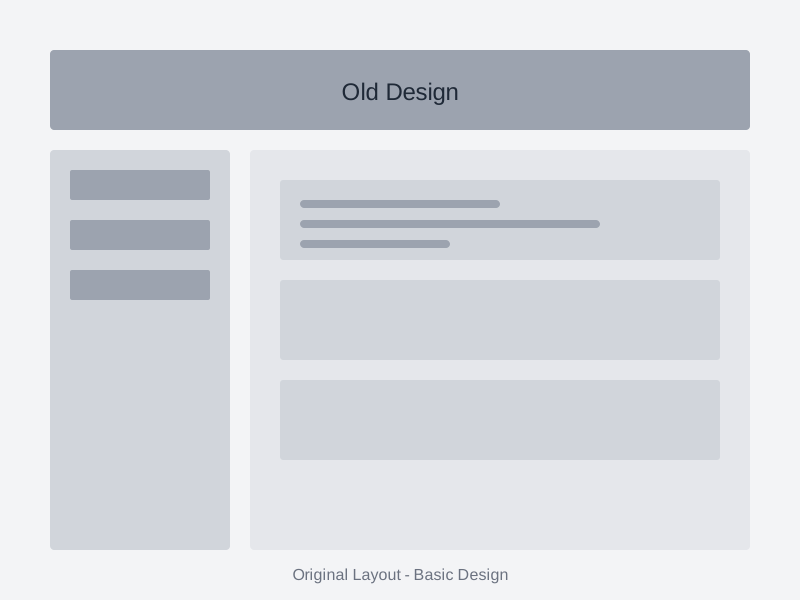
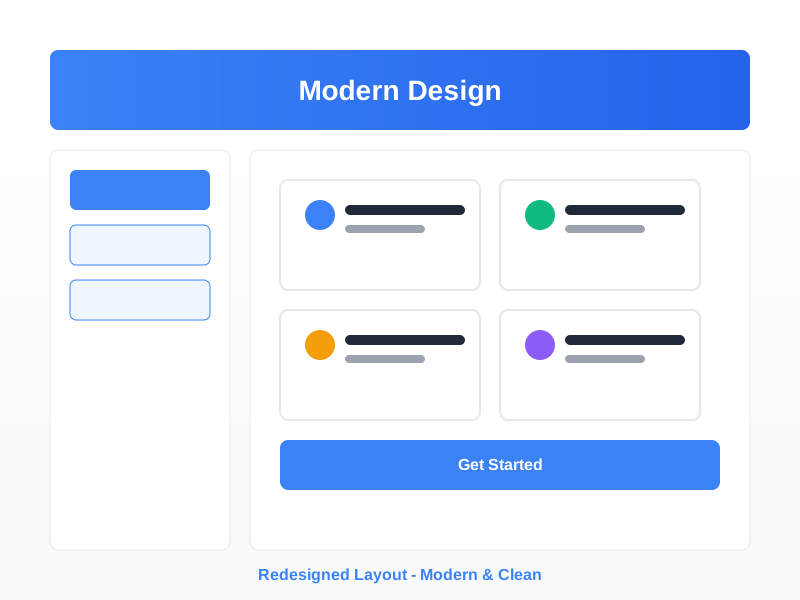
Use :::image-compare with two images:
Syntax Structure
:::image-compare


:::
The first image is the "before" view and the second is the "after" view. Users can drag the slider to reveal more of either image.
With Custom Label
Add a descriptive label above the comparison:
Common Use Cases
1. UI/UX Design Changes
Showcase interface improvements and redesigns:
Perfect for:
- Landing page redesigns
- Dashboard improvements
- Component library updates
- Branding changes
2. Code Output Comparisons
Compare visual results of code changes:
Useful for:
- CSS technique comparisons
- Rendering differences
- Performance optimizations
- Browser compatibility
3. Image Processing Results
Show before/after effects of image manipulation:
Great for demonstrating:
- Compression techniques
- Filter applications
- Resolution changes
- Format conversions
4. Bug Fixes
Illustrate visual bug corrections:
5. Responsive Design
Compare mobile vs desktop layouts:
6. Accessibility Improvements
Show contrast and readability enhancements:
Features
Interactive Controls
- Mouse Drag: Click and drag the slider handle
- Touch Support: Swipe on mobile devices
- Smooth Animation: Fluid slider movement
- Visual Feedback: Handle indicates interactivity
Responsive Design
The comparison adapts to:
- Different screen sizes
- Container widths
- Image aspect ratios
- Mobile and desktop devices
Accessibility
Built with accessibility in mind:
- Alt text from markdown images
- Keyboard navigation support
- Screen reader friendly
- Touch-optimized controls
Visual Indicators
- Before/After labels on images
- Central slider handle with icon
- Hover effects on interactive elements
- Clear visual separation line
In Documentation
Tutorial Progression
Show steps in a learning process:
steps
Step 1: Initial Setup
Start with the basic structure:
Step 2: Add Styling
Apply CSS improvements:
Step 3: Final Polish
Complete the design:
With Explanatory Asides
Multiple Comparisons
Create a series of comparisons to show incremental changes:
Version 1.0 to 2.0
Version 2.0 to 3.0
Version 3.0 to Current
Best Practices
Use High-Quality Images
✅ Good:
- Clear, well-lit images
- Consistent dimensions
- Appropriate resolution
- Same aspect ratio
❌ Avoid:
- Blurry or pixelated images
- Different sizes or ratios
- Inconsistent lighting
- Misaligned content
Descriptive Alt Text
✅ Good:


❌ Generic:


Meaningful Labels
✅ Good:
:::image-compare[Performance Optimization - 60% Faster Load Time]
❌ Vague:
:::image-compare[Comparison]
Align Your Images
Ensure both images show the same:
- Camera angle/perspective
- Content alignment
- Zoom level
- Framing
This makes the comparison meaningful and easy to understand.
Technical Details
Image Requirements
- Format: Any web-compatible format (JPG, PNG, SVG, WebP, GIF)
- Size: Ideally under 1MB each for performance
- Dimensions: Both images should have the same dimensions
- Aspect Ratio: Must be identical for proper alignment
Browser Support
Works in all modern browsers:
- Chrome/Edge (latest)
- Firefox (latest)
- Safari (latest)
- Mobile browsers
Performance
The component is optimized for:
- Fast initial load
- Smooth drag interactions
- Minimal JavaScript overhead
- Efficient rendering
Self-Contained
All styling and functionality is:
- Inline CSS (no external stylesheets)
- Inline JavaScript (no dependencies)
- No framework requirements
- Works everywhere markdown renders
Syntax Reference
:::image-compare


:::
With label:
:::image-compare[Your Custom Label]


:::
Parameters:
label(optional) - Text displayed above the comparison- First image - The "before" image (left side)
- Second image - The "after" image (right side, initially hidden)
Error Handling
If images are missing or invalid:
:::image-compare
Some text without images
:::
An error message will display indicating that both before and after images are required.
Real-World Examples
Portfolio Case Study
Project: E-commerce Redesign
Results:
- 45% increase in conversions
- 30% decrease in bounce rate
- Improved mobile experience
Blog Post Example
When we started the redesign, user feedback indicated that the interface felt cluttered and overwhelming:
The new design follows material design principles and significantly improves the user experience.
Documentation Example
Upgrading from v1 to v2
The new version introduces a completely redesigned interface:
See the migration guide below for upgrading instructions.
Comparison with Alternatives
vs. Side-by-Side Images
Image Compare Slider:
- Interactive exploration
- Space-efficient
- Focuses attention on differences
- Better for subtle changes
Side-by-Side:
- Shows both images simultaneously
- No interaction required
- Better for completely different images
- Requires more space
vs. GIF/Video
Image Compare Slider:
- User controls the comparison
- Better performance
- Accessible to all users
- Easier to implement
GIF/Video:
- Shows changes over time
- No interaction needed
- Larger file sizes
- May have accessibility issues
Tips for Great Comparisons
Photography Tips
- Use a Tripod - Keep the camera position identical
- Same Lighting - Maintain consistent lighting conditions
- Lock Focus - Don't let autofocus change between shots
- Same Settings - Use identical camera settings
Screenshot Tips
- Same Zoom Level - Browser zoom should be identical
- Same Window Size - Keep viewport dimensions the same
- Same Scroll Position - Align content vertically
- Hide Dynamic Content - Remove timestamps or changing data
Design Tips
- Highlight Key Changes - Make differences obvious
- Keep Context - Don't crop too tightly
- Use Annotations - Consider adding arrows or highlights
- Tell a Story - Show meaningful improvements
Related Features
- Tabs - For non-visual comparisons
- Details - For expandable content
- Cards - For presenting multiple examples
- Link Cards - For external resources
Troubleshooting
Slider Doesn't Appear
Cause: Missing or invalid images Solution: Ensure both images are properly formatted markdown images
Images Don't Align
Cause: Different image dimensions Solution: Resize images to have identical width and height
Slider Doesn't Drag Smoothly
Cause: Images are too large Solution: Optimize and compress your images
Images Load Slowly
Cause: Large file sizes Solution: Use WebP format and compress images
Advanced Usage
Combining with Code Examples
Show how code changes affect the visual output:
CSS Changes:
/* Before: Flexbox */
.container {
  display: flex;
  flex-wrap: wrap;
}
/* After: CSS Grid */
.container {
  display: grid;
  grid-template-columns: repeat(auto-fit, minmax(200px, 1fr));
}
Visual Result:
In Card Grids
Complete interface overhaul with modern design principles.
Reduced load time by 60% through image optimization.